Quick Summary:
If you have landed on this blog post, that means you are looking for assistance to improve and enhance the performance of your existing Laravel application to get the best out of it. This blog post has covered the pro tips and tricks from the industry’s best Laravel developers and how to overcome the performance laybacks.
This blog post contains the ultimate Laravel performance optimization guide to go easy on your disillusioned mind and waver all the dark clouds of poor Laravel app performance. Read in-depth to learn about how to boost Laravel application performance and enhance the security of your existing application.
Introduction
We are working on a heavy Laravel website with many requests and structured query language/eloquent calls. There is high-CPU VPS and high memory still, we feel that there is a lot of room for performance improvement.
Laravel has become the first and foremost choice for building business-focused applications, including eCommerce platforms and information management systems.
We agree Laravel has grown by leaps and bounds, and it’s consistent finetune performance has again made it the best PHP framework of 2022. Laravel is a one-stop PHP development framework from simple web applications to complex APIs. A quick development approach, MVC architectural pattern, and a set of libraries make it convenient to build well-structured beautiful code.
As per Google Trends, Laravel has remained the most used and popular PHP framework over the last few years.
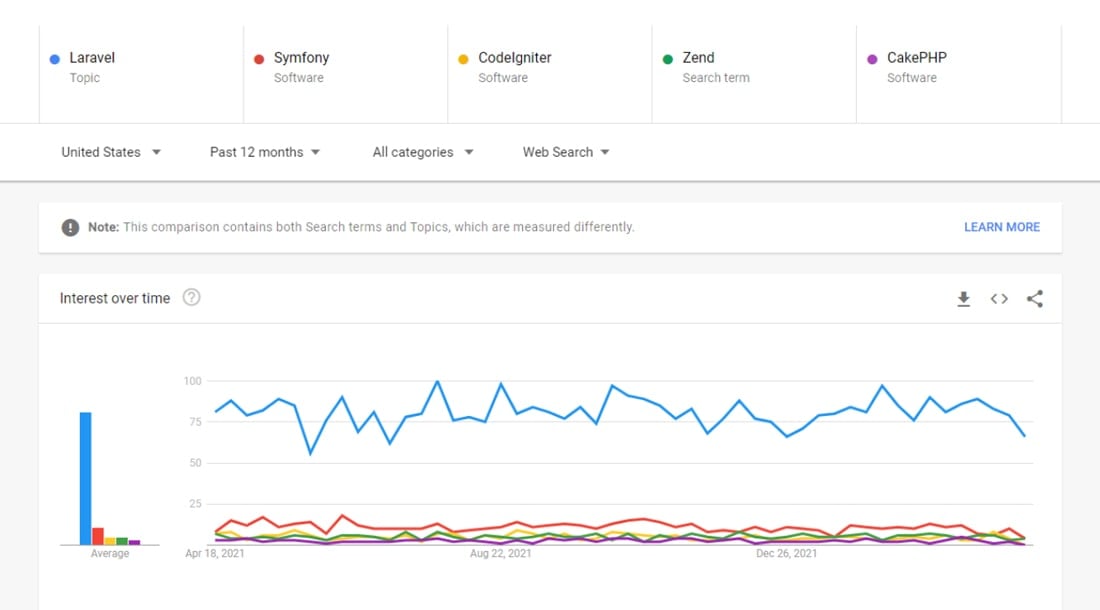
The framework has some outstanding functionalities that have made developers’ life easy. As you use Laravel in your project development, you must learn the tactics and tricks for PHP Laravel performance optimization in your application to get the maximum potential.
Laravel app optimizes easily, and that’s the best part of using this framework, as you can optimize your application whenever you feel it is needed to enhance its performance.
Importance of Website Speed
You might be wondering how it would matter if your website loads a second faster. It counts as much as a gold coin! Even a fraction of second matters if you want to hold on to your visitors for converting them into your clients.
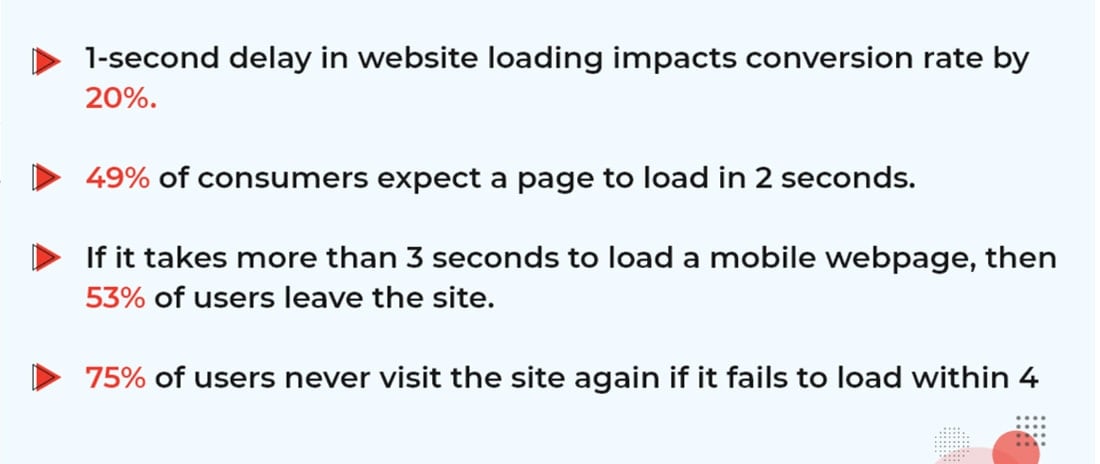
The UI, search rankings, conversations, etc., make a difference in your website’s Google rankings. If your customers and visitors face a lag in performance over time, they will gradually stop using your site.
How to Ensure the Security of your Laravel Website?
The below provided Laravel website security best practices will ensure that you are safe from any threat.
Choose A Secure Server for Hosting
You should keep a regular backup of your website, use strong passwords, and complete authorization. Your website contains your users’ sensitive information; hence, you should not use shared servers. Before choosing your web server, you should check with your provider if they provide a secure connection, use SSH protocol and authentication, FTPS, SSL, private networks, and VPNs.
Update Your Website with The Latest Versions
Do not miss any improvements that the latest Laravel version brings out. Make sure that you use the most upgraded version of Laravel for your website. The latest version is Laravel 9. If you don’t upgrade, you might lack the essential features for your Laravel website.
Also, check out what’s new in Laravel 9 for more details about the fixes on bugs, security improvisations, and new features.
Update Modules, Packages, and Plugins
One thing is that you should use only the modules, plugins, and packages that your project requires and discard the others. Just updating your Laravel website to the latest version is not enough. You need to update all your project modules, packages, and plugins.
Check Firewall Settings
Your Laravel website should, very importantly, have a web application firewall that works as a filter and monitor for your HTTP application. Your web application firewall should be either a cloud-based solution or installed on your system.
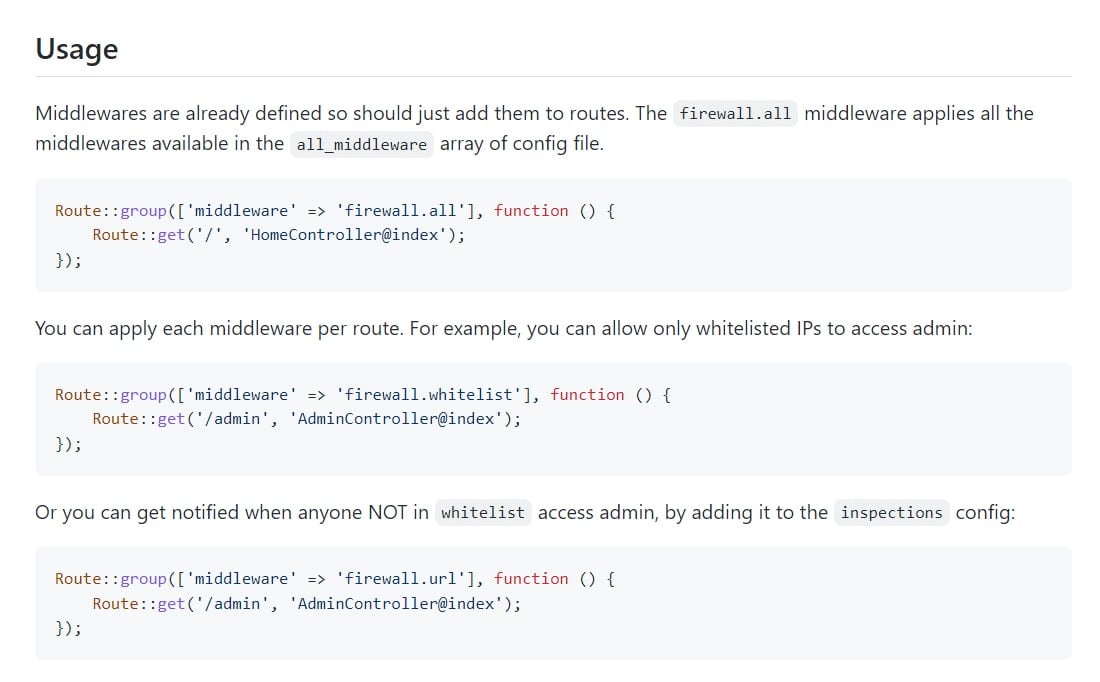
Image Source: GitHub
You shall attain numerous benefits by having a firewall, such as protection from brute-force attacks, spambots, backdoor, SQL injection, DDOS, and other protections.
Make Use of HTTPS
When your web application uses HTTP, all your website information transmits in plain text, which is vulnerable to hackers and attacks.
Hence, it would help if you used HTTPS over HTTP, which will ensure your website’s information security.
Want to make your existing application Scalable and SEO Optimized?
Hire Laravel developer from us to get the secure, digitally scalable, and highly tuned application.
Use In-built Laravel Security Features
Why search outside when you’ve got it inside? Yes, Laravel comes with an in-built authentication system to secure your website information. The Laravel framework takes care of the user authentication and gives only the needed access to each user.
Your website’s sensitive information remains confined to the users and does not go public. Secure it from SQL Injections User inputs like server variables, cookies, and input values like ‘GET’ and ‘POST’ can raise the vulnerability of SQL query injection.
To overcome this, you should use the Eloquent ORM of Laravel, which uses PDO binding to avoid SQL injection.
Validate and Filter Data
Before sending user data to your system in the form of queries, you must always filter and validate the data to prevent SQL injections firsthand.
Take Precautions during Mass Assignments
Mass assignments are a convenient feature when you want to enter a long list of variables.
However, we do not recommend it because cyber attackers can alter the data from the client-side, which is extremely vulnerable. You can either use $fillable or $guarded property but very cautiously without forgetting to add new fields to your model.
Reduce Laravel Vulnerabilities from CSRF Cross-Site Request Forgery
Laravel uses the CSRF tokens to assure no fake requests and that there is no intrusion.
Each user has their own CSRF token, and when the user makes any request, the Laravel system matches it with the previous user session token. Hence, you must add a hidden CSRF field while writing your HTML application.
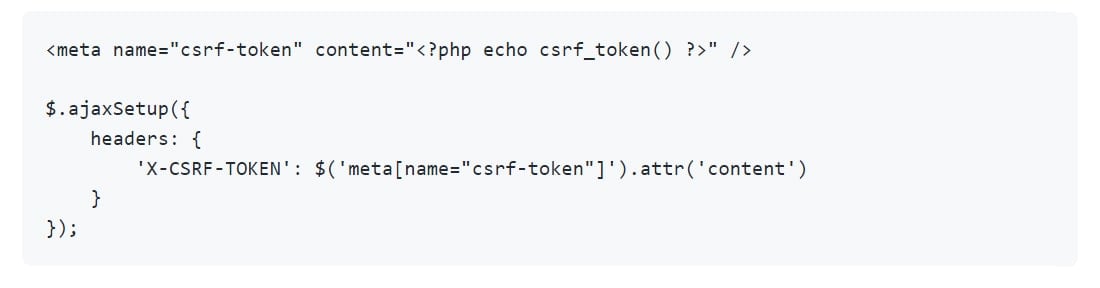
Image Source: GitHub
To see all the above and some additional Laravel security tips in real action, check out this video from WebDevMatics. You will thoroughly enjoy it.
After getting a deep understanding of key points to consider to keep your application secure, now it’s time to understand why to focus on laravel performance optimization in 2022 and top Laravel performance optimization tips.
Why Focus on Laravel Performance Optimization?
You have surely created a Laravel application where the Laravel developers have used the PHP framework and essential libraries to bring out the maximum potential of your project idea. But, there’s always room for perfection and enhancements.
Mostly, businesses use Laravel to build their business information system, and hence the performance of their business is critically related to the performance of Laravel. To ensure smooth performance and deployment of your Laravel project, you should prioritize optimizing Laravel application for your business benefits.
The Laravel management information system enables you to take vital business decisions, and hence optimizing the performance of the Laravel app will surely enable improved business prospects.
Top Laravel Performance Optimization Tips For Your Application

1. Routes caching
If your Laravel application has many routes and configurations, then the php artisan route cache is an essential feature to speed up your Php app improvement.
Run the listed below command to cache the routes.php file

php artisan route: cache
At the time of using closures, the artisan command hurls an exclusion. When we even try to compile the routes, it is suggested to interchange with the controllers.
It is similar to the config cache. The changes you amend in routes.php will not have a favorable effect once you cache it. If you want to refresh the routes cache, you can run the above code again. But if you want to clear the routes cache, run the below code.
php artisan route: clear
2. Use Artisan Commands Effectively
Laravel comes with extra perks when it comes to boosting performance
1. php artisan config:cache
2.
3. php artisan route:cache
4.
5. // Note: Artisan Optimize was removed in laravel 5.5; this works in previous versions.
6. php artisan optimize --force
Commands are beneficial when you are using so many configurations and route files. Tip: Make sure to clear cache after changes.
1. php artisan config:clear
2.
3. php artisan route:cache
4.
5. php artisan view:clear
3. Use the Deployment tool to Appeal to All Commands
We know it cannot be considered a performance tip, but it will help you reduce your time, and that matters. A deployer is a deployment tool, and if you have ever used composer to handle your project dependencies, you’ll feel so right. Deployer can be deployed to Laravel application as its seeds, optimization, and migrations with one command.
php deployer.phar deploy production
4. Eager Loading
The most common issue of retrieving eloquent relationships is the N+1 query problem. Let me help you understand this scenario with two different models of flats and their owners. Consider if you want to retrieve their owners, and to achieve that, you will be required to run the following code:
$cars = App\Flat::all();

    foreach ($flats as $flat) {
      echo $flat->owner->name;
    }
It will help you execute one query to find out all of the flats from the database, and another query will help you find out the owners. Let’s move forward with the image, we have 100 flats, and this loop requires 101 queries: one for the flat and an additional to find out the owner of each car. Does it sound so common because we are using a small database? But, We want you to imagine a large dataset and queries to imagine the actual picture.
To overcome this problem, We prefer to use eager loading.
$flats = App\Flat::with('owner')->get();

    foreach ($flats as $flat) {
      echo $flat->owner->name;
    }
You can reduce the operation to just two queries by running the above code.
Ready to Improve Your Laravel Application Performance?
Contact the most trusted Laravel Development Company to build scalable, efficient, and user-friendly applications
5. Queues
How about using Queues to improve the application. The image you have developed is an application that sends a welcome email to new users upon signing up. It makes use of third-party email services such as Mailgun. A new user record will be inserted into the database, so a call is redirected to the Maligun to send a welcome email.
This third-party email may take a few seconds, so the user might think that the sign-up process is slow. You can use Queue to send an email and run it as a background task. The code might be lookalike below:
public function register(Request $request)
    {
      // validate form inputs
      $this->validator($request->all())->validate();

      // persist user to database
      $user = $this->create($request->all());

      // send welcome email
      Mail::to($user)->send(new WelcomeEmail($user));

      // log user in
      $this->guard()->login($user);

      return $this->registered($request, $user) ?: redirect($this->redirectPath());
    }
Running this code will improve the application’s performance and enhance the user experience.
6. Leverage JIT Compiler
PHP is a computer machine and server-side language. It does not comprehend PHP code natively. Usually, the programmers use a compiler to compile the code into bytecode and interpret the PHP code. The program compilation procedure affects Laravel application performance and the user experience. SO, Laravel programmers can use Zend Engine, which comes with the just-in-time compiler, to compile the code quickly and at once.
7. Compress Images
If your Laravel application contains many images, you should compress all of them to optimize the performance. There are some ways to do the optimization. However, different images require different tools to maintain their quality and resolution of images.
If you use Laravel Mix, it is advisable to use an NPM package like ImageMin while compiling your images. For a very large image, try TinyPNG to compress the image first and then use ImageMin to compress it as much as possible.
8. Classmap optimization
A smart trick to keep your Laravel app compact and ready for easy loading should keep all your inclusive files together. As you want to include multiple files in your application, you just need to call and have one common file.
Such a move will fasten your Laravel application by including several files in a combined file for loading into your application.
9. Precompile Assets
Developers will always maintain the right development environment by keeping different assets needed in your application separate. Though this is a good practice, it is not mandatory for production scenarios. And sure, Laravel has in-build artisan commands that can help you with this bifurcation.
php artisn optimize
php artisn config: cache
php artisan route: cache
Laravel will automatically classify your most used classes and keep them in a single file using the above commands.
10. Assets Bundling
All Laravel applications are accompanied by the instrumental Laravel Mix, which effectively builds your application API from Webpack. Laravel Mix consists of common CSS and Javascript preprocessors that offer you script, styles, and other compilations.
For example, if you want some set of specific style formats for your application file, like:
mix.styles([
  'public/css/vendor/normalize.css',
 'public/css/styles.css'
], 'public/css/all.css');
Using Laravel Mix, your application will auto-create an all.css file from normalize.css and style.css. Hence, you can merge both the style sheets within a single all.css file instead of retrieving them individually. This hack will improve Laravel application performance.
11. Assets minifying
Your loading file turns huge when you implement the above performance optimization tip by compiling assets in one file. To overcome this issue, you may use the following command:
$ npm run production
Conclusion
We hope you liked the Laravel performance checklist for Laravel performance optimization. You must surely take a Laravel performance analysis and find out on your own which tips and tricks will help you have a great optimized app. We host skillfully experienced Laravel application developers who assure you of the fastest responding business apps.
To improve the Laravel performance tuning of your Laravel application, hire Laravel developers from us, to get the job done at your convenience.
Frequently Asked Questions (FAQs)
Easy steps to ensure Laravel website speedy performance are clearing cache(config & routing), using minimal and essential packages only, eager loading, and fetching the bare minimum database queries.
Below is the list of points to consider to reduce page load time in Laravel:
- Always use the latest Laravel version.
- Follow the practice of using Artisan Commands.
- Use packages that suit your application.
- Routes Caching and Config Caching.
Config caching is the best way to decrease memory usage in your laravel application. Database chunking is also a way to reduce memory usage.
Eloquent ORM (Object Relational Mapper ) is included within Laravel, which provides simple and attractive data implementation while working on a Database.






 Cj comms open 1/6 slots (@ShiijeiKun)