http://img.youtube.com/vi/I-y-VSOL93I/0.jpgPresenting a package by Spatie with their opinion of how Laravel default stubs should look like. You may use the package, or just adopt some ideas behind some stubs.Laravel News Links
Are You Nuts? Know your Fishing Knots! – The Surgeon Loop Knot
https://www.alloutdoor.com/wp-content/uploads/2022/09/20220920_182135.jpg
The Surgeon Loop Knot is the fastest and easiest loop knot to tie. If you can tie an overhand knot, you can tie this knot. While it isn’t as neat and elegant as some other loop knots, it is a very strong loop knot that does not easily slip. You can use the Surgeon Loop Knot to make a loop at the end of your line for attaching weights or clips. Or as shown in this article, to make a loop to where you are attaching your hook or lure. While it is shown with a hook in this article, this knot excels for tying on lures and flies. The open loop gives whatever is tied to more action and movement. For just tying an empty loop just follow the same instructions without a hook.
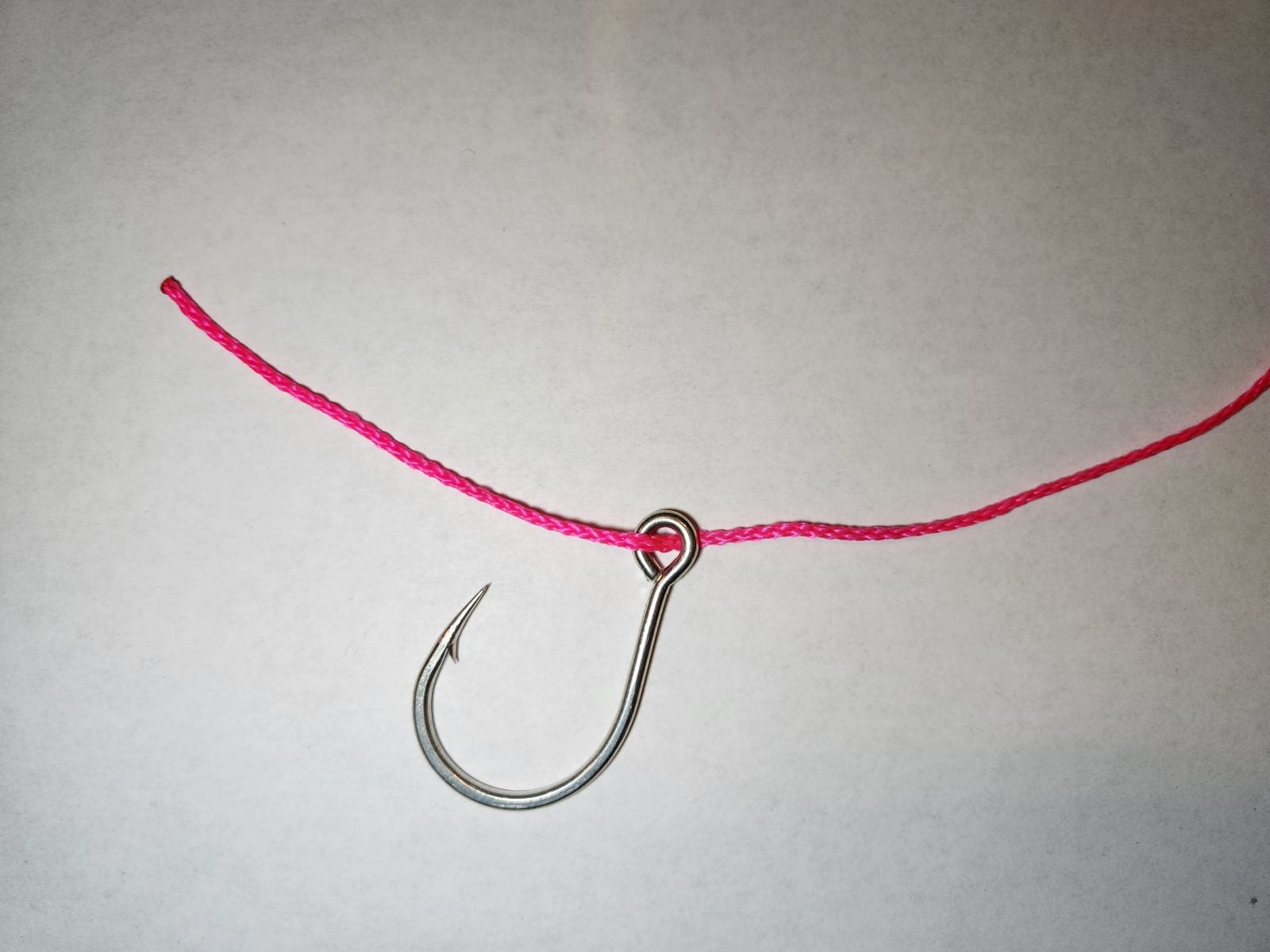
Step 1
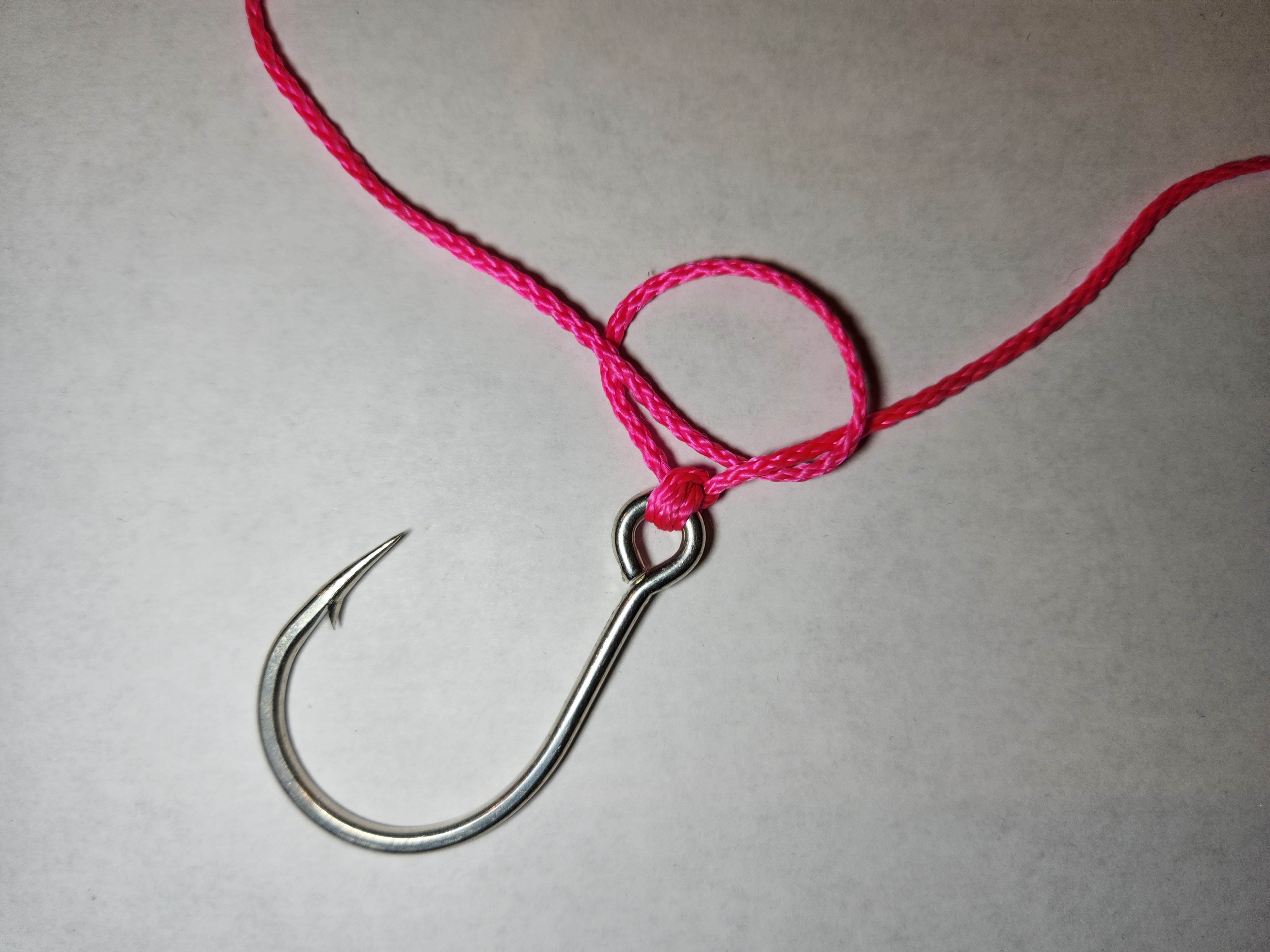
Run the line through the eye of the hook and bring the tag end of the line back along the mainline. Make sure your tag end of the line is long enough for the overhand loop to pass over the hook or lure.

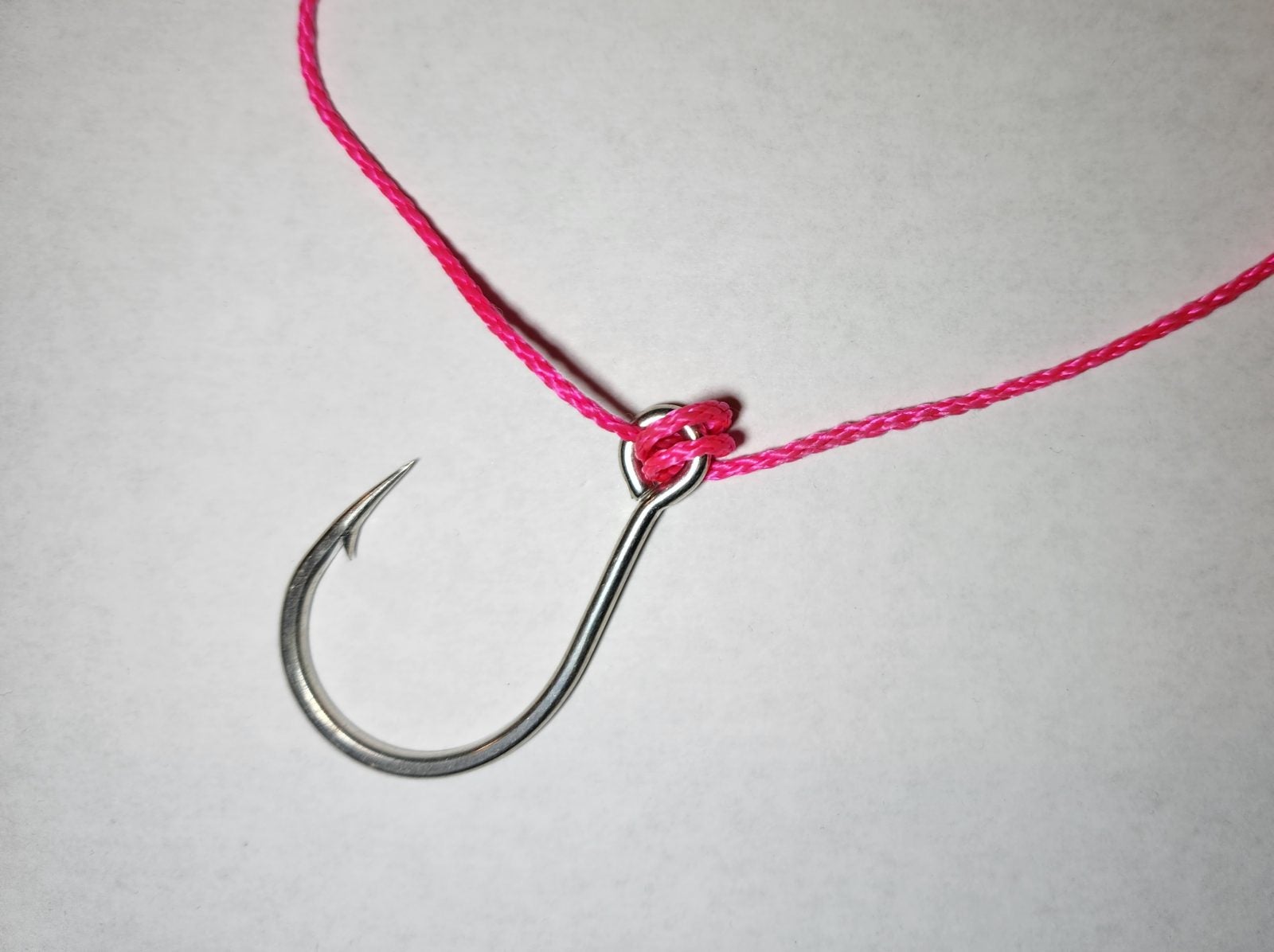
Step 2
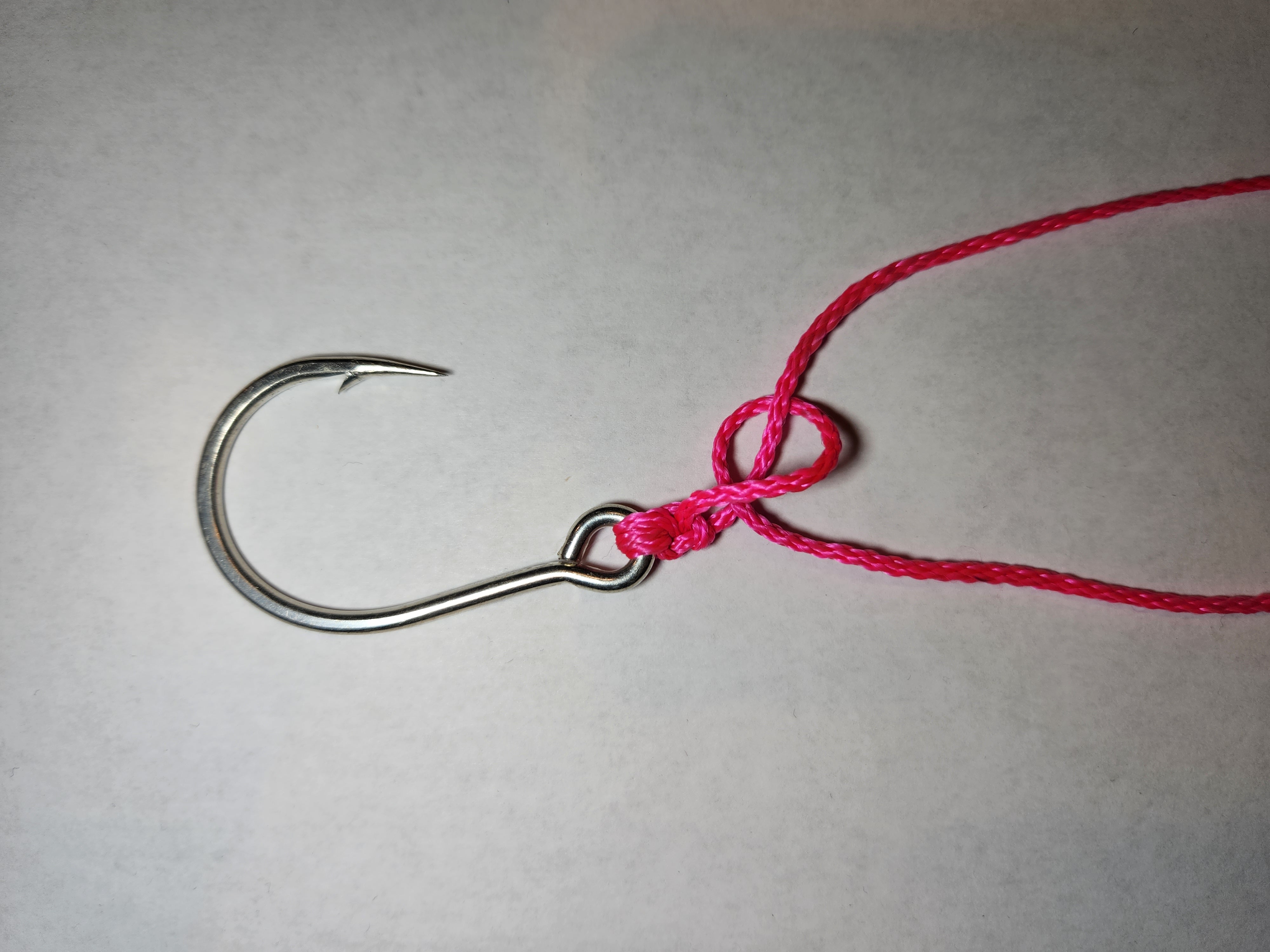
Make an overhand loop using the doubled line and hook, make sure to keep the lines together and not twisted.

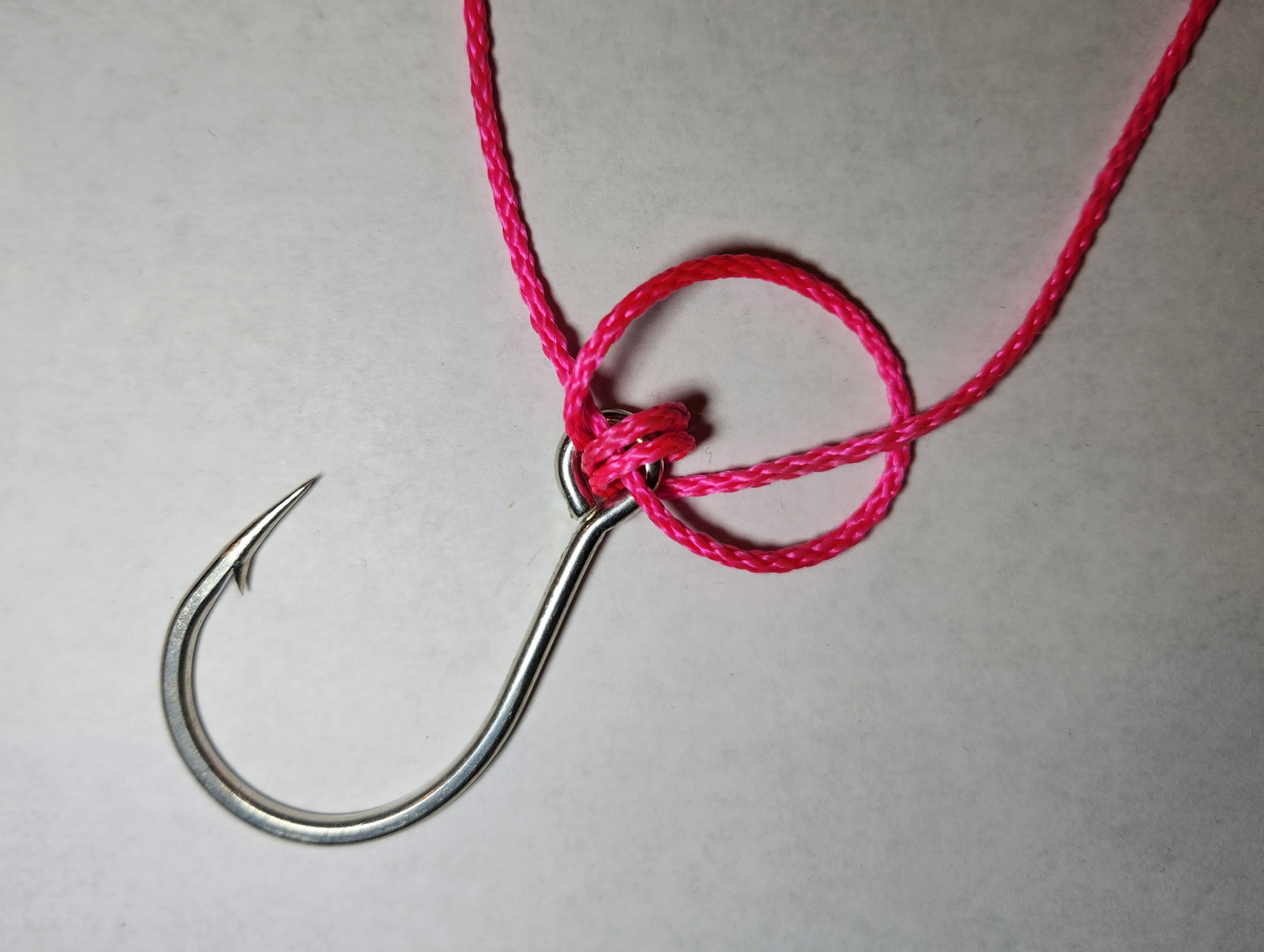
Step 3
Pass the doubled line and hook through the overhand loop in the mainline one more time, again keeping this tidy is important for the final knot.

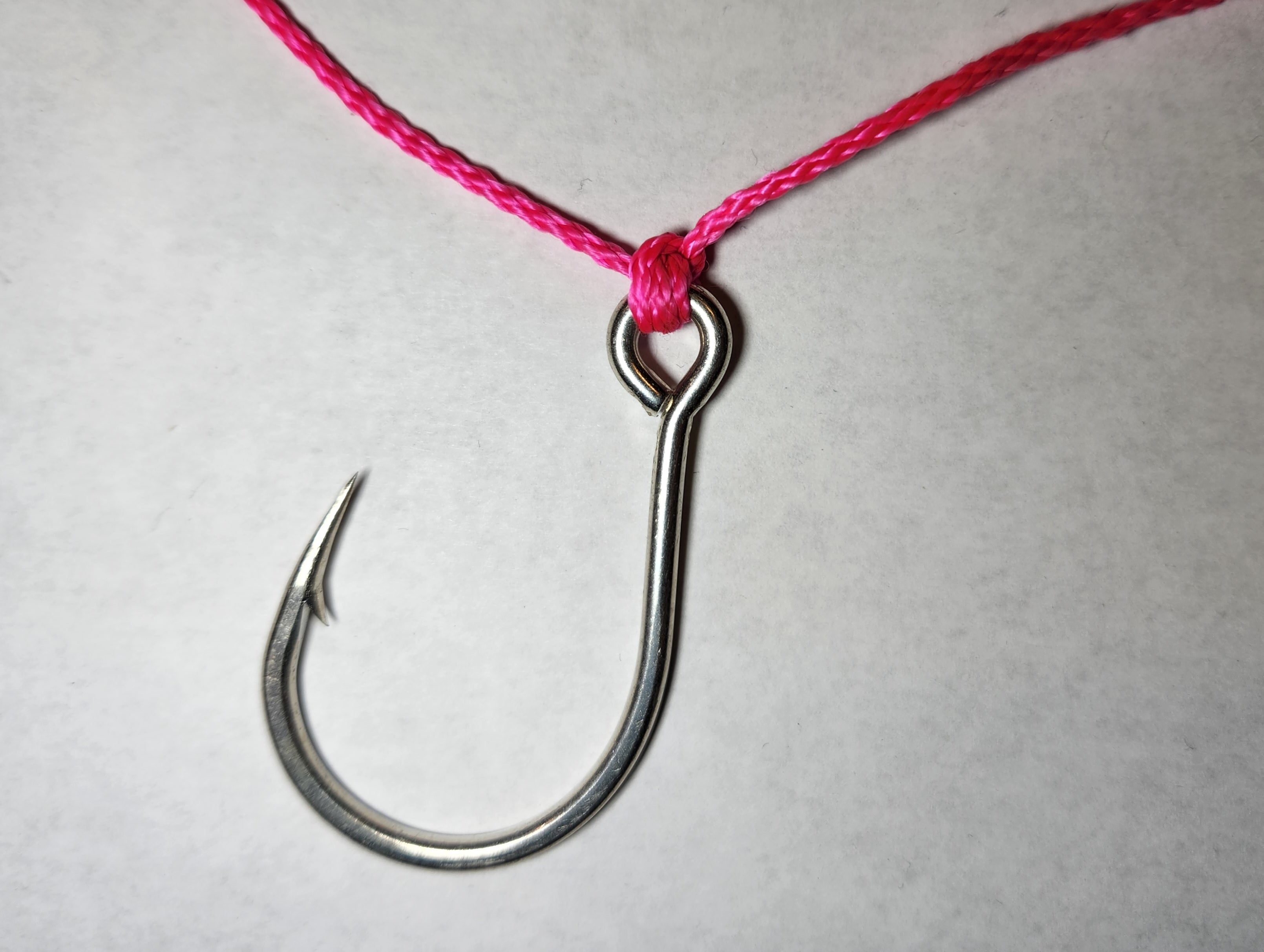
Step 4
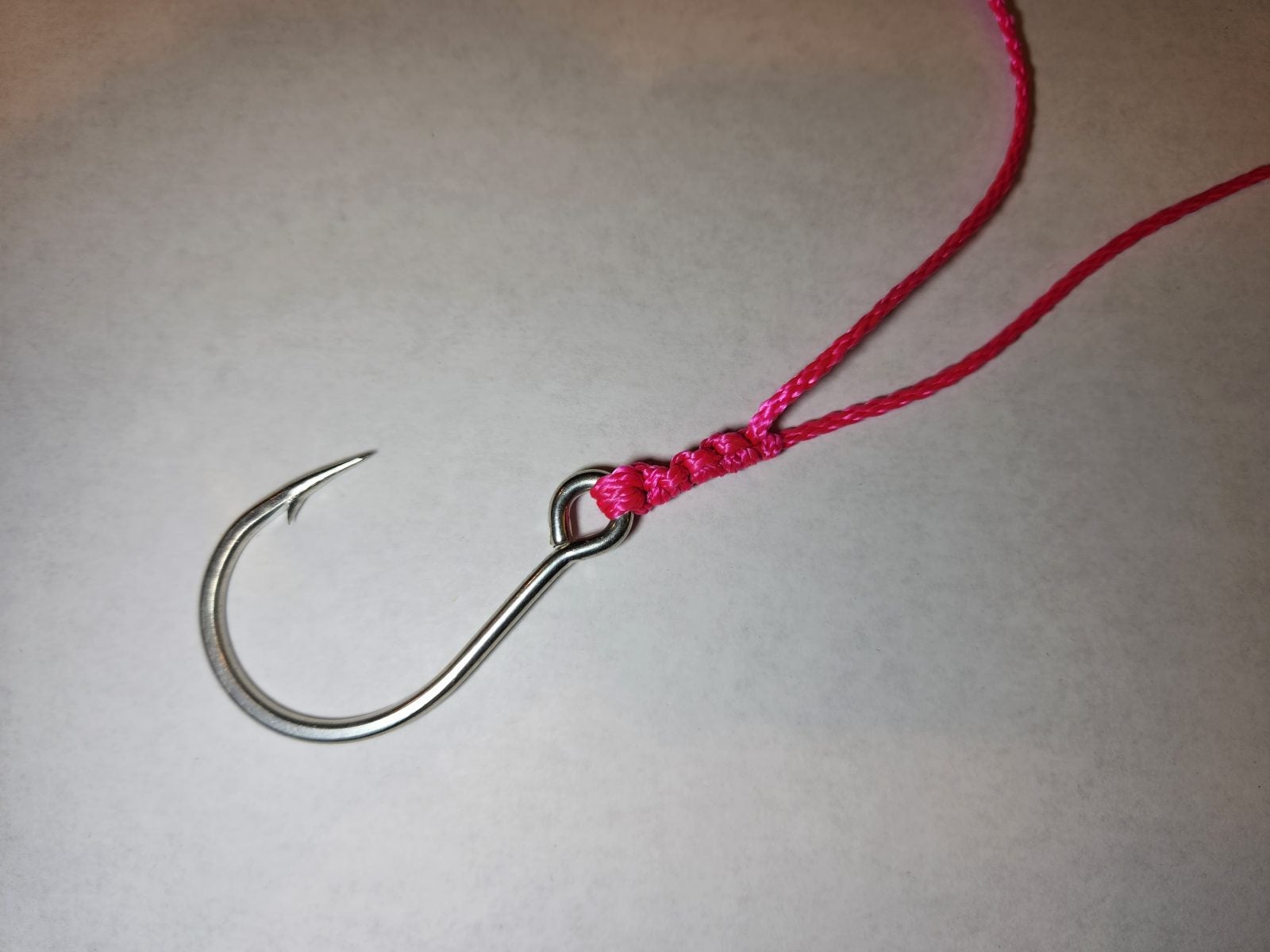
Moisten the knot and line then hold the hook or lure and the standing line and pull to tighten the knot. Make sure to adjust the loop size at this point. Once the knot has been snugged down trim the tag end to about a 1/4 inch. For fishing lures and jigs you want to have a loop about the size of an M&M, anything bigger and cause the lure to tangle.

The post Are You Nuts? Know your Fishing Knots! – The Surgeon Loop Knot appeared first on AllOutdoor.com.
AllOutdoor.com
singlestoredb/singlestoredb-laravel
https://packalyst.com/assets/img/logo.png
Description
A SingleStoreDB database driver for Laravel.
Last update
2022/09/19 23:22 (dev-main)
Last update
2022/09/19 23:22
Require
- php ^7.3|^8.0
- illuminate/container ^8.0|^9.0
- illuminate/database ^8.0|^9.0
- illuminate/events ^8.0|^9.0
- illuminate/support ^8.0|^9.0
Last update
2022/09/16 23:34
Require
- php ^7.3|^8.0
- illuminate/container ^8.0|^9.0
- illuminate/database ^8.0|^9.0
- illuminate/events ^8.0|^9.0
- illuminate/support ^8.0|^9.0
Last update
2022/08/24 22:11
Require
- php ^7.3|^8.0
- illuminate/container ^8.0|^9.0
- illuminate/database ^8.0|^9.0
- illuminate/events ^8.0|^9.0
- illuminate/support ^8.0|^9.0
Last update
2022/06/30 20:42
Require
- php ^7.3|^8.0
- illuminate/container ^8.0|^9.0
- illuminate/database ^8.0|^9.0
- illuminate/events ^8.0|^9.0
- illuminate/support ^8.0|^9.0
Last update
2022/06/09 20:48
Require
- php ^7.3|^8.0
- illuminate/container ^8.0|^9.0
- illuminate/database ^8.0|^9.0
- illuminate/events ^8.0|^9.0
- illuminate/support ^8.0|^9.0
Last update
2022/06/08 18:37
Require
- php ^7.3|^8.0
- illuminate/container ^8.0|^9.0
- illuminate/database ^8.0|^9.0
- illuminate/events ^8.0|^9.0
- illuminate/support ^8.0|^9.0
Last update
2022/05/31 20:31
Require
- php ^7.3|^8.0
- illuminate/container ^8.0|^9.0
- illuminate/database ^8.0|^9.0
- illuminate/events ^8.0|^9.0
- illuminate/support ^8.0|^9.0
Packalyst :: Latest Packages
Floppy Disk Factory
https://theawesomer.com/photos/2022/09/floppy_disk_factory_t.jpg
It’s been a long time since we needed floppy disks to store data. But we still enjoyed watching this retro factory video posted by StirlingEngineering, which shows how they used to produce 3.5″ floppies. It’s a satisfying 5-minutes sequence of mechanical ear candy.
The Awesomer
Deploy Laravel App To Production And Set Up Staging Environment
https://i.ytimg.com/vi/bllBDoHPNK4/maxresdefault.jpgDeploy Laravel App To Production & Set Up Staging EnvironmentLaravel News Links
How Not to Use MySQL
Chapter 9 of Efficient MySQL Performance changed in development. Originally, it was a chapter titled “Not MySQL”, as in “how not to use MySQL.” But we (O’Reilly and I) pulled the chapter, and the current chapter 9 in print is “Other Challenges”: an important laundry list of other challenges engineers using MySQL must be aware of and address. This blog post is a sketch of the unwritten chapter 9: how not to use MySQL.
Planet MySQL
Fire Extinguisher Ball
https://theawesomer.com/photos/2022/09/fire_extinguisher_ball_t.jpg
Elide Fire makes this innovative firefighting device – a ball that can be tossed into a fire to instantly extinguish or reduce its intensity. The ball automatically deploys upon contact with a flame and smothers it with a blanket of non-toxic chemicals. It can also be placed in a high-risk location where it will activate in case of fire.
The Awesomer
Watch: Badass Chick-fil-A employee saves mother and baby as he chokes out their carjacker
https://www.louderwithcrowder.com/media-library/image.png?id=31717681&width=980
Chick-fil-A is bland, overrated chicken. Being honest with ourselves is important. It’s generic fast food in desperate need of a few more herbs and/or spices. That doesn’t mean the legend of Chick-fil-A employees isn’t something to both praise and marvel at. They go above and beyond in serving their community. As opposed to lazy Mcdonald’s employees who expect $25 an hour to throw frozen meat in the microwave and never fix the shake machine.
The legend grows in Florida as one employee took a break from slinging barely seasoned nuggets to save a woman and her baby by choking the f*ck out of their would-be carjacker.
In reference to the FWB Chick-fil-A employee who ran to help a woman with a baby who was being carjacked, we want to say a sincere thank you to Ms. Kelner for providing video of a portion of the encounter. (see prior post). A major shout-out to this young man for his courage! pic.twitter.com/2Lcwe46azv
— OkaloosaSheriff (@OCSOALERTS) September 14, 2022
The punk’s name is William Branch. According to Whiskey Riff (who, like me, can’t wait for the new Koe Wetzel album on Friday), Branch tried to jack the car using a stick. This does not look like the face of the man who grasps the irony.
The woman screamed as Branch worked his way into her car. Upon hearing the cries of a damsel in distress, the mystery Chick-fil-A employee lept into action. He pulled Branch from the car, wrestled him to the ground, then put Branch in a chokehold until help arrived. It was a solid chokehold, too. If the anonymous Florida resident isn’t training at American Top Team yet, he should.
Branch is being charged with carjacking with a weapon (the stick Branch used) and battery. Our mystery Chick-fil-A employee remains just that, walking off into the horizon until he is called on again to save the day.
The Louder with Crowder Dot Com Website is on Instagram now! Follow us at @lwcnewswire and tell a friend!
Swedish Election PROVES The Left Is Engineering Racism! | Louder With Crowder
youtu.be
Louder With Crowder
10 Best Lightroom Alternatives (Free & Paid)
https://i0.wp.com/digital-photography-school.com/wp-content/uploads/2022/09/best-lightroom-alternatives-1005.jpg?w=1177&ssl=1
The post 10 Best Lightroom Alternatives (Free & Paid) appeared first on Digital Photography School. It was authored by Ana Mireles.

Interested in the best Lightroom alternatives for organizing and editing your photos? You’re in the right place.
Lightroom is one of the most popular photo editors and managers on the market, but it’s certainly not your only option. Below, we share our top 10 favorite alternative post-processing programs – so whether you’re a Lightroom user looking for a change or you’re a beginner researching all potential software, this article will help you out.
Our list includes free and paid options as well as programs for beginner and advanced editors. By the time you’ve finished reading, you’ll be ready to choose the best software for your needs.
1. RawTherapee

An open-source program for photo editing and management, RawTherapee is a fantastic free Lightroom alternative. It’s not difficult to use, but the interface can be off-putting if you’re used to working in Lightroom or other popular programs.
Fortunately, the learning curve isn’t especially steep (depending on your photo-editing requirements). And there’s a RawPedia full of material to help you figure out whatever you need.
RawTherapee also allows for batch editing, and it can be synced with Photoshop or GIMP if you need to do advanced photo retouching and manipulation.
If you’re interested in learning more, check out our in-depth Lightroom versus RawTherapee comparison.
Pros
- Free
- Syncs with PS and GIMP
- Windows, iOS, and Linux versions are available
Cons
- No cloud storage
- Steeper learning curve
2. Luminar

Skylum Luminar is a paid editing program that includes a photo manager. Until recently, it was only available as a one-time purchase, which could be an advantage, especially when the software was on sale. (Skylum did release new products somewhat frequently, so if you wanted to use the company’s cutting-edge software, you needed to purchase a new program every year or so.)
Now, however, Skylum has a more complicated approach to product development and sales. You can still buy the company’s Luminar AI program with a one-time payment, but it’s not the latest and greatest product. The best program, Luminar Neo, is offered as a subscription (monthly or yearly plans are available) or as a one-off purchase. But it’s not a single asset; instead, you can purchase “extensions” that are sold separately from the main software.
Regardless of your payment preferences, what’s especially important to remember is that both Luminar AI and Luminar Neo are powerful photo editors, and they also include a section where you can manage your images. The biggest difference is that Luminar AI is designed to offer easy one-click solutions for photo editing, while Luminar Neo gives you more creative control and therefore has a steeper learning curve.
Pros
- AI tools
- Easy to use
- Selective editing
Cons
- Paid
- Confusing pricing model
3. Adobe Bridge

Adobe Bridge is Adobe’s assets manager. Unlike Lightroom, it supports multiple video and audio formats, AI files, PDFs, 3D materials, etc.
To edit a photograph using Adobe Bridge, you need to install Adobe Camera Raw (ACR). It works as a plugin, so you can launch it from inside of Bridge (but you can’t open it separately).
Adobe Camera Raw has a very similar interface to Lightroom, and the features are essentially identical. It basically gives you Lightroom – and when you combine ACR with Bridge, you get a more powerful file manager.
To use Bridge, you do need an Adobe membership plan; if you decide to go this route, consider purchasing the Photography plan or the Photoshop app.
Pros
- Supports multiple file formats
- Free with any of the Adobe CC apps
- Syncs with Photoshop
Cons
- Photo editing via ACR plug-in
- Requires an Adobe membership
4. ACDSee

As far as paid choices go, ACDSee offers some of the best Lightroom alternatives you can find. The company offers multiple products to fit the needs and budgets of different types of photographers (though it may be difficult to decide which is best for you).
Whichever program you choose, you’ll gain access to solid software that offers digital asset management and photo editing. And at the time of writing, all the ACDSee editing products include Luxea Video Editor for free.
ACDSee programs are intuitive and easy to use, which makes them perfect for beginners. They also have some very powerful tools both for managing and editing, so professional photographers will be plenty satisfied. Furthermore, Lightroom users needing to migrate their photos can easily import databases from Lightroom Classic.
Pros
- Multiple solutions to choose from
- Reasonably priced
- Easy import of LR database
Cons
- Only one product for Mac
- No photo editing in the free version
5. Apple Photos

Apple Photos is free and pre-installed on every Apple device. In fact, iPhones and iPad cameras automatically upload their images to Apple Photos – but you can also import images from other cameras and devices. It supports all image formats, including RAW files, and it supports video, as well.
Apple Photos uses on-device machine learning to help you organize and filter your files. This is a great way to manage and search through your images more efficiently. You can also sync your files using Apple iCloud so that you can access them on all your iOS devices.
Photo and video editing are non-destructive, and Apple Photos offers automatic tools that you can use to fine-tune your files. Unfortunately, it doesn’t have many advanced editing features – not yet, at least. But it is continuously being updated and has greatly improved in the last few years, so who knows? Maybe it will get more professional in the future!
Pros
- Free
- iPhone Live Photos preview
- Nondestructive editing
- On-device machine learning AI tools
Cons
- Only for iOS
- Not many advanced tools
6. ON1 Photo RAW

ON1 Photo RAW is an excellent Lightroom alternative – one that’s available as either a one-off purchase or a subscription. If you go with the subscription plan, you get all the products and plug-ins, all future updates, and even cloud storage. But if you grab the program as a one-off purchase, you’ll need to pay for future updates separately.
Photo RAW is a powerful photo editor with multiple AI tools that work very well; the NoNoise AI feature is particularly impressive. You also get plenty of manual features if you want to have full control over the editing process.
The program also has management tools that allow you to organize, cull, and rate your files. It supports all RAW formats and allows you to switch to a fast preview option if you need to browse your files quickly. (You can create full-quality previews at a later time.)
Pros
- Subscription or purchase available
- Compatible with PS plugins
- Excellent NoNoise AI tool
- Free cloud storage with a subscription plan
Cons
- Paid
- Interface could be better
7. Darktable

Like many open source programs, Darktable can be overwhelming for beginners – especially those who aren’t tech-savvy. You don’t need to know coding to use the program, but when browsing resources or checking out the FAQ section of the website, you might get confused. This is mainly because you’ll come across programming terms that aren’t part of the average photographer’s vocabulary.
However, once you understand how to use Darktable, you’ll realize that it’s a very powerful software and an amazing free Lightroom alternative
You can import your photos into Darktable for easy search, rating, and tagging. The program supports all raw formats and has both basic and advanced editing features. It also offers multiple export formats and the ability to export images directly to email, Facebook, and Flickr.
Pros
- Free
- Non-destructive editing
- Available for all platforms
Cons
- Not such a friendly interface
- Steeper learning curve
8. DxO PhotoLab

DxO PhotoLab is a powerful photo editor. The management tools are more basic, but this is understandable because the Library and organizing features were only recently added.
It boasts outstanding editing tools; one of the best is the noise reduction upgrade. If you like to have full control, you’ll love the U Point technology that offers customizable Control Lines and Points for easier and more precise masking.
As I mentioned above, the management tools are on the simpler side, but you can still cull and organize your images. You can also browse them using the new dynamic search option.
Note that you receive a free copy of PhotoLab 5 with the purchase of the (outstanding) Nik Collection.
Pros
- AI tools
- Nik collection plugins
- U Point technology for precise selective editing
Cons
- Paid
- Management tools could be better
- Confusing pricing model
9. Capture One

Capture One is an incredible Lightroom alternative, but be warned: It’s not targeted at beginners. It costs more, it offers full control over every step of the workflow, and it has very few auto or one-click features.
Capture One’s management capabilities allow you to efficiently cull and organize your images. You can also create smart albums, export photos in different formats to different locations, and preview the export recipe before processing.
You can use Capture One for wireless tethered shooting with compositional overlays. It’s possible to customize your workspace and make annotations on your images. The software is jam-packed with editing tools and the results are very high quality.
Pros
- Subscription or one-time purchase available
- Includes tethered shooting
- Customizable workspace and workflow
- Solutions for businesses and teams
Cons
- Expensive
- Steep learning curve
10. Google Photos

Google Photos offers photo editing and management features, and for amateurs and beginner photographers, it’s a decent pick.
Thanks to the auto-backup feature that uploads directly from your gallery, it’s a great manager for smartphone photos. You can also manually upload photos from other devices using the browser version. You get 15 GB of storage for free, and you can always purchase more if you need it.
Google Photos offers basic photo editing including a one-click feature. It also has fun tools like Cinematic Moments (which animates two similar photos).
It uses AI to help you find your images by place, face detection, and more. However, it does lack professional management tools like keyword tagging.
Pros
- Free
- AI search tools
- Auto-backup from your phone
- 15 GB storage
Cons
- No longer offers unlimited storage
- No advanced editing features
- No keyword tagging
Extra alternative: Lightroom Mobile

If you’re looking for the best Lightroom alternatives because you don’t like Lightroom, then simply ignore this suggestion – but if you’re simply looking for a free alternative, then consider Lightroom Mobile, which has a (very functional) limited free version.
Although some tools are limited to paid members, the free version can handle quite a bit of editing. It also offers 2 GB of cloud storage so that you can also use it as a file manager.
Pros
- Free
- Selective editing
- Cloud storage
Cons
- Limited features
- Mobile-only
- Requires an Adobe account
Which Lightroom alternative should you choose?
Though Adobe products are very powerful tools, they’re certainly not the only game in town. As you can see, there are many valid alternatives for those wishing to switch from Lightroom (or those who simply want to avoid it from the start).
If you’re looking for a free Lightroom alternative, you have two types of programs to choose from: free and open source or free and commercial. And in the paid category, you have a choice between one-off purchases or subscriptions.
To make the right decision, make sure you balance your budget with your editing and file-management needs as well as your personal skillset.
Best Lightroom alternatives: final thoughts
Lightroom is both a photo editor and a file manager. Taking this into account, I’ve aimed to share Lightroom alternatives that include both capabilities.
Of course, if you only need editing or file-management software (or you’re willing to use separate programs for each task), then you have many more choices.
Which program do you plan to use? Why? Share your thoughts in the comments below!
The post 10 Best Lightroom Alternatives (Free & Paid) appeared first on Digital Photography School. It was authored by Ana Mireles.
Digital Photography School
Are You Nuts? Know your Fishing Knots! – The San Diego Jam Knot
https://www.alloutdoor.com/wp-content/uploads/2022/09/20220913_180435.jpg
The San Diego Jam Knot, as its name implies comes from a sportfishing capital of the world. The city is the gateway to the Pacific for anglers chasing after tunas, seabass, and yellowtail. The San Diego Jam Knot was originally tied as a quick and easy way of tying “irons” jigs when chasing big tuna on long-range boats off the coast of Mexico.
This knot is a great choice for all line types: mono, fluorocarbon, and braid. When making sure the jam knot is fully set and tight on a hook or lure, you can attach the hook to a fixed object and give a strong pull. That will make sure the knot is set tight and won’t come loose when fished. This knot is one of the stronger knots available and has been tested rigorously by the San Diego Tuna boats.

Step 1
Run the line through the eye of the hook and bring the tag end of the line back along the mainline.

Step 2
Take the tag end of the line and then wrap it around the main line multiple times, a minimum of 4 wraps, the more the better. The thicker the diameter of the line the fewer wraps needed, and the thinner the line or if using braided line more wraps are needed

Step 3
Take the tag end of the line and pass it through the double line next to the eye of the hook and then the loop made by the first wrap.

Step 4
Hold the hook or lure and pull and adjust the tag end of the line to tighten the knot up after moistening the line. Be careful not to mess up the wraps and have them go over each other.

Step 5
Trim off the excess line from the tag end of the line, leaving about 1/4″ behind for the tag. Then pull the knot down to the eye of the hook and tighten it up. You can put the hook or lure somewhere solid and give it a solid pull to make sure the knot is tight. This is the finished San Diego Jam Knot.
The post Are You Nuts? Know your Fishing Knots! – The San Diego Jam Knot appeared first on AllOutdoor.com.
AllOutdoor.com