Laravel News Links
Building an Audit Trail System in Laravel – Every Change, Every Actor, Every Context
Laravel News Links
This website lets you look out of other people’s windows, and I’m hooked
https://static0.makeuseofimages.com/wordpress/wp-content/uploads/wm/2025/10/windowswap-website-open-on-a-laptop.jpg
I didn’t expect to lose an hour staring out of strangers’ windows online, but here we are. One moment I was at my desk, drowning in the usual chaos of tabs, and the next I was gazing at a misty mountain framed by a Swiss balcony. A single click later, I found myself in São Paulo, where rain streaked the glass and cars splashed down narrow streets. I clicked again, and I was peeking out of a high-rise in New York, watching the skyline glow as the sun slipped behind the towers.
This, in a nutshell, is WindowSwap, a website that lets you “open a new window somewhere in the world.” Trust me, it’s every bit as captivating as I found Live TV Wall, which lets you stream live channels from around the globe.
WindowSwap is a pandemic project that refused to stay indoors
The world’s most peaceful rabbit hole
WindowSwap really lives up to its name: it invites you to peer through strangers’ windows around the globe from your own screen. The site was launched in mid-2020 by Singapore-based couple Sonali Ranjit and Vaishnav Balasubramaniam as a kind of pandemic antidote to cabin fever. Their idea was straightforward: if we couldn’t fly across oceans, maybe we could at least borrow each other’s views. It stood apart from the usual apps and websites people turned to for relief during those long lockdown months.
What began as a modest lockdown side project soon grew into a global community. According to a One Show case note, as of 2021, the site had accumulated more than 12,000 submissions from over 110 countries, over 5 million unique visitors, and 20+ million total views.
Opening the window
A simple interface with surprising depth
Getting started with WindowSwap is refreshingly simple. When you visit the website, you land on a page with one centered button that reads, “Open a new window somewhere in the world.” When you click it, the screen fades into a real video: a window frame fills the view, with plants on the sill, curtains slightly parted, maybe a quiet street or garden beyond. You hear ambient sounds (whether it be birds, passing cars, distant chatter, etc.), and for about ten minutes, you’re somewhere else entirely.
A small label in the top-right corner of the screen shows the location as well as the time the video was captured, often within the last few months. In the upper-left corner, you’ll see whose window you’re peering through (in the case of the first image in the gallery above, "Zubby’s Window"), adding a personal touch to each view. In the lower-right corner, you’ll find a handful of intuitive controls: a loop button to replay your current window endlessly, a fullscreen button to immerse yourself completely, and a volume control to adjust or mute the ambient audio. These let you customize your window-watching experience without cluttering the interface.
It’s important to note that these are pre-recorded videos, not live streams. The window views are randomly selected, so you might occasionally see a window you’ve already viewed. You can keep clicking "Open a window somewhere in the world" as much as you like to flip through streams randomly. Each click transports you to a new corner of the globe—from bustling Tokyo streets to tranquil Norwegian fjords—making it endlessly easy to lose yourself in the hypnotic rhythm of window-hopping across continents.
Everything about WindowSwap feels thoughtfully designed
You can unlock even more windows if you really fall in love with it
WindowSwap doesn’t do much, but everything it does feels intentional. The project’s founders chose not to make the clips live feeds. Every video is submitted by someone, reviewed manually for privacy and quality, and then curated into the platform’s growing library. That review process means you’ll never accidentally stumble into something invasive or inappropriate. You are sure to enjoy just the quiet rhythms of daily life across the globe.
You can also send in your own window. All that’s required is for you to sign up, then upload a horizontal ten-minute video that includes the window frame, recorded in good light with clear natural sound. You submit it with your name and location, and after moderation, it becomes part of the growing archive.
If you end up hooked (and you probably will), there’s an “All-Access” membership that costs $5 a month or $50 a year. This premium tier unlocks several enhanced features: a back button to revisit the previous window you just viewed, the ability to filter windows by type (such as snowy windows), search functionality to find windows by specific locations, unlimited bookmarks to save your favorite views, and access to every window ever uploaded to the platform.
Try WindowSwap for yourself
The next time you feel that familiar restlessness creeping in and want to dodge the endless scroll without relying on another “anti-scrolling” app, try opening WindowSwap instead. Click a window, pour yourself a coffee, and let the world roll in. Maybe you’ll find yourself in Tokyo watching the neon glow. Maybe you’ll end up on a farmhouse porch in the middle of nowhere. Or maybe you’ll just watch someone’s cat hogging the spotlight. And if you’re feeling generous, consider submitting your own view. You never know whose day might be brightened by it.
MakeUseOf
Database Schema Auditor
Laravel News Links
This guy puts cameras on Hot Wheels. It’s some of the best content on the internet.
https://media.notthebee.com/articles/68ee908024c0168ee908024c02.jpg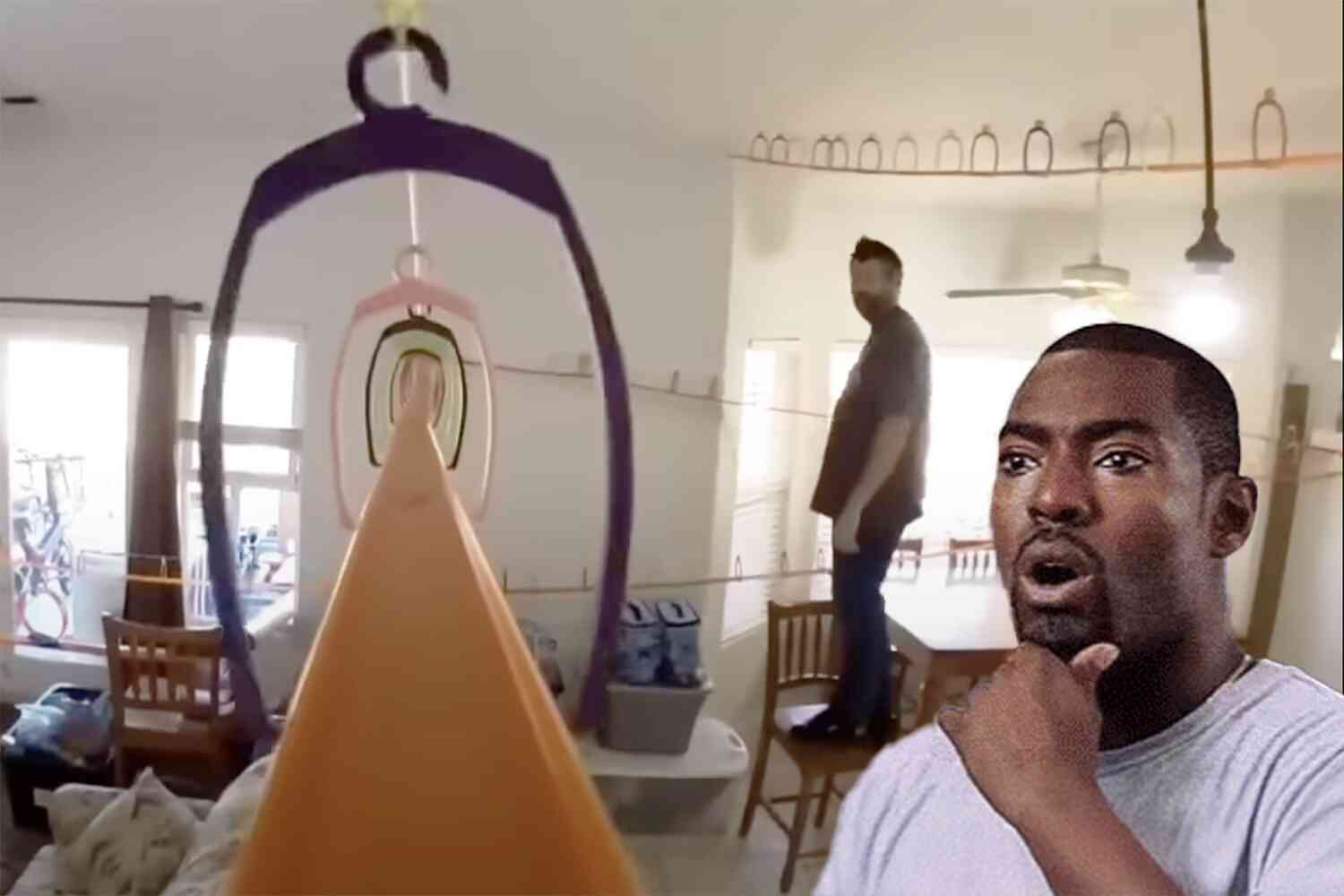
When I was a young boy, I loved playing with Hot Wheels cars. Now that I’m an adult, I love watching videos like this:
Not the Bee
EasyERD – ERD Diagram Generation using your models & migrations
Laravel News Links
Making an OTF Folding Knife from Scratch
https://theawesomer.com/photos/2025/10/making_an_otf_titanium_knife_t.jpg
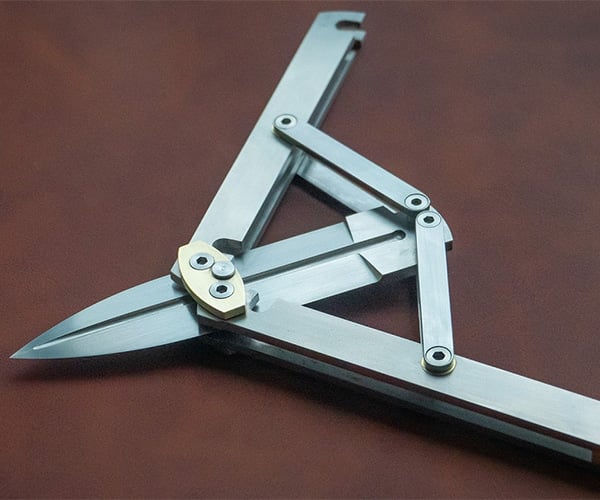
We’ve seen quite a few knives being made over the years, but they usually have fixed blades. Metalsmith Koss shows off by machining a more complicated knife with an out-the-front deployment mechanism for its M390 steel blade. Its titanium handle design reminds us of those folding plier multitools, but you can’t exactly use one of those for self-defense.
The Awesomer
Top 50 MySQL Interview Questions and Answers for Every Skill Level
https://blog.devart.com/wp-content/uploads/2025/10/1068x580_Top-50-MySQL-Interview-Questions-1.jpg
Explore the top 50 MySQL interview questions and answers for freshers and experienced candidates. Get prepared with real-world MySQL queries and expert insights
The post Top 50 MySQL Interview Questions and Answers for Every Skill Level appeared first on Devart Blog.
Planet MySQL
8 Tips Best Practice for Uploading Excel Data in Laravel
Laravel News Links
Load Balancing with Laravel Forge
Laravel News Links