https://www.devart.com/blog/wp-content/uploads/2026/08/1068x580_Database-Development-in-VS-2026.png
Database development rarely breaks all at once. It happens through small changes that seem harmless at the time. Someone adds a column directly to the shared database. A stored procedure gets fixed in production but not in the project. An index is created in staging and never added anywhere else.
Everything looks fine until the next release. Then the differences start showing up, and nobody is quite sure which version of the schema is correct.
Reliable database development in Visual Studio avoids that problem by treating the schema like source code. Each database object lives in a .sql file, builds catch syntax errors and unresolved references, and the project produces a .dacpac that you can deploy across environments.
This guide covers 13 best practices for database development in Visual Studio, from choosing the right project format to checking for drift after deployment. We will also look at where dbForge Edge fits when your team works with database systems beyond SQL Server.
Summary
- Install SSDT through the Data storage and processing workload.
- Keep the SQL project (not the shared database) as the single source of truth.
- Match the target platform to the SQL Server version running in production.
- Build before every commit to catch errors early.
- Conduct a review with Schema Compare or a DeployReport before publishing.
- Register DAC during deployment so schema drift is caught before the next release.
Table of contents
What database development in Visual Studio looks like in 2026
In a typical Visual Studio 2026 database development workflow, the schema lives in a SQL project. You build the project to catch errors, then package it as a .dacpac for deployment. Because the project is stored in source control with the application code, database changes can go through the same review and testing process as everything else.
The landscape of SQL Server development tools is where things get confusing. Visual Studio, VS Code, SSDT, SSMS, and specialized database IDEs have some overlapping features, but they are not meant for exactly the same work.
Visual Studio 2026 and SQL Server Data Tools
SQL Server Data Tools, or SSDT, adds database project support to Visual Studio. It gives you SQL projects, T-SQL editing with IntelliSense for SQL autocompletion, object navigation, table design, schema comparison, build validation, debugging, and publishing. SQL Server Object Explorer also lets you connect to SQL Server and Azure SQL without leaving the IDE.
SSDT is mainly built for the Microsoft SQL ecosystem. It supports SQL Server 2016 through SQL Server 2025, Azure SQL, Azure Synapse Analytics, and SQL services in Microsoft Fabric. It works well for SQL Server development, but it is not a general-purpose database administration tool and does not cover MySQL, Oracle, or PostgreSQL.
Original SQL projects vs SDK-style SQL projects
There are two SQL project formats in use. The original format is the MSBuild-based .sqlproj that SSDT has used for years. It supports the full Visual Studio workflow, including graphical design, schema comparison, builds, debugging, and publishing.
The newer SDK-style format is based on Microsoft.Build.Sql. It follows the same general conventions as other .NET SDK projects, builds with dotnet build, and supports NuGet package references.
Here is the important part: Visual Studio 2026 only supports the original format. For SDK-style projects, you will need Visual Studio Code, command-line tools, or the optional preview component available in Visual Studio 2022.
Visual Studio vs Visual Studio Code vs dedicated database IDEs
VS Code and Visual Studio are not the same thing here. The complete SSDT workflow for original SQL projects is provided by Visual Studio. For connections and SDK-style project work, VS Code uses the MSSQL and SQL Database Projects extensions.
You might still need SSMS or a dedicated database IDE. These tools are more appropriate for administration, data editing, query profiling, backup and permission management, and multi-database work.
| Your workflow | Best fit |
|---|---|
| Application code and a SQL Server project in one solution | Visual Studio 2026 with SSDT |
| SDK-style projects and command-line builds | VS Code with SQL Database Projects |
| SQL Server administration, backups, and permissions | SSMS |
| Work across SQL Server, MySQL, MariaDB, Oracle, PostgreSQL, and related cloud services | dbForge Edge |
13 best practices for database development in Visual Studio
The mechanics of how to develop a database in Visual Studio are not difficult. The harder part is keeping the project, environments, and deployment process aligned as more people start making changes. The database development tips below follow that workflow from initial setup to post-deployment monitoring.
1. Install and standardize the required Visual Studio database tools
Open the Visual Studio Installer to install SSDT. Select Modify, and then check the SQL Server Data Tools option in the Data storage and processing workload.
Be sure everyone is working on the same workload and components. Otherwise, a project may build on one developer’s machine but fail on another. Analysis Services, Integration Services, and Reporting Services each require separate extensions. Microsoft also supports offline installation layouts for secured networks.
2. Choose the right SQL project format
Choose the format of the project and design the workflow around it. Visual Studio 2026 supports only original SQL projects. If your team requires Microsoft.Build.Sql, NuGet package references, or dotnet build in Linux-based pipelines, use an SDK-style project with VS Code or command-line tools.
Avoid mixing both formats for the same database unless there is a clear migration plan. The formats use different build tooling and handle dependencies differently.
3. Make the database project the single source of truth
The approved schema should live in the SQL project, not in a shared development database. When developers change the database directly, the project quickly becomes an outdated copy that nobody fully trusts.
For an existing database, right-click the empty project and select Import > Database. SSDT will script the objects into the project. After that, make schema changes in the project first and publish them to each environment.
4. Select the correct target database platform
The target platform controls which T-SQL syntax and SQL Server features the build accepts. If the project targets SQL Server 2025 while production still runs SQL Server 2019, the build may approve code that production cannot run.
Set the target to the oldest platform the project must support. This is especially important when the same codebase runs across different SQL Server versions or both Azure SQL and on-premises SQL Server.
5. Organize database objects consistently
Select a folder structure and stay with it for the project. You can group objects by schema, object type, or both. SSDT’s default import structure (schema, then object type) makes sense as a starting point.
A reviewer should be able to find a file without having to search the whole project. For larger databases, splitting the schema into separate projects joined by explicit references can also make ownership and dependencies easier to manage.
6. Define database dependencies explicitly
If an object depends on something outside the current project, add a database reference. Without one, the build will report unresolved references.
Original Visual Studio SQL projects can reference another SQL project, a compiled .dacpac, or a system database configured through SSDT. NuGet package references are only available in SDK-style projects.
Make sure the build agent can resolve the same dependency. A local .dacpac reference, for example, must exist at the expected relative path in CI.
7. Store every database change in Git
Treat database objects the same as application code when committing. Schema history, branches, pull requests, and code review should apply to tables and stored procedures too.
Application and database changes that depend on each other should also be versioned and released together. They do not have to live in the same repository, but the release process must prevent one from being deployed without the other.
See also: Our comparison of the best Git GUI clients for Windows
8. Keep database changes small and reviewable
Keep branches short-lived and pull requests small. A small change is easier to review, test and roll back than a pull request that touches several unrelated objects.
The reviewer should be able to answer a practical question for each change: what will happen to the existing data when this is deployed? What matters more is if the SQL diff looks clean.
9. Build the database project before every commit
A build checks T-SQL syntax, object relationships, database references, and compatibility with the target platform. It also creates the .dacpac used for deployment.
This catches problems such as a procedure referencing a deleted column or a view using a renamed table. Build locally before committing, then run the same check again in CI. A database project with build errors should not move into deployment.
10. Review schema differences before deployment
Schema Compare helps you inspect differences between a project, .dacpac, or live database. In Visual Studio, open Tools > SQL Server > New Schema Comparison, select the source and target, and review each proposed change.
For a release, generate a script or DeployReport from the same .dacpac and publish profile the pipeline will use. This gives you a more accurate view of the planned deployment.
Common mistake: Do not treat a successful comparison as approval to deploy. Keep BlockOnPossibleDataLoss enabled, but still review the generated script. It is a safeguard, not a replacement for checking the deployment plan.
For a closer look at the differences between these approaches, see dbForge Compare Bundle vs. Visual Studio: Which one compares databases better?
11. Test database changes in an isolated environment
Publish to an isolated database before staging. This could be LocalDB, a local SQL Server instance, or a SQL Server container.
Do not test only against an empty database. Use representative data, constraints, and table sizes where possible. An ALTER TABLE that finishes immediately on an empty table may take much longer or cause blocking against production-scale data.
12. Automate deployment through CI/CD
Once the build produces a .dacpac, use SqlPackage to deploy it through Azure Pipelines, GitHub Actions, or another CI/CD platform.
Generate a Script or DeployReport first, store it as a pipeline artifact, and require approval before production deployment. Promote the same .dacpac through development, testing, staging, and production rather than rebuilding it for each environment.
13. Detect schema drift continuously
Schema drift happens when someone changes a deployed database outside the normal release process. To track it, publish with RegisterDataTierApplication enabled. This records the deployed schema as a baseline.
You can then run the DriftReport action to find changes made since registration. Use BlockWhenDriftDetected to stop the next deployment until the differences have been reviewed and either added to the project or removed from the database.
How dbForge Edge supports database development in Visual Studio
dbForge Edge works alongside Visual Studio rather than replacing it. Visual Studio and SSDT can remain the main environment for application code, SQL projects, and .dacpac builds. dbForge Edge becomes useful when the work extends beyond that workflow or beyond Microsoft databases.
That is where a universal database tool earns its place. dbForge Edge brings together four database IDEs for SQL Server, MySQL and MariaDB, Oracle, and PostgreSQL. The suite supports SQL development, data editing, administration, query profiling, debugging, source control, and schema and data comparison. It also connects to more than 30 databases and cloud services, including Azure SQL, Amazon RDS, Aurora, Redshift, Supabase, and Neon.
This gives teams a practical way to keep SQL Server database project development in Visual Studio while using one toolset for work across other database systems. Schema and data comparison can run against databases, snapshots, scripts folders, and source control revisions. Many of these tasks can also be automated from the command line for deployment checks and scheduled jobs.
The optional dbForge AI Assistant is a context-aware SQL AI tool that can generate, explain, optimize, and troubleshoot SQL using database metadata as context. It requires a separate license from dbForge Edge.
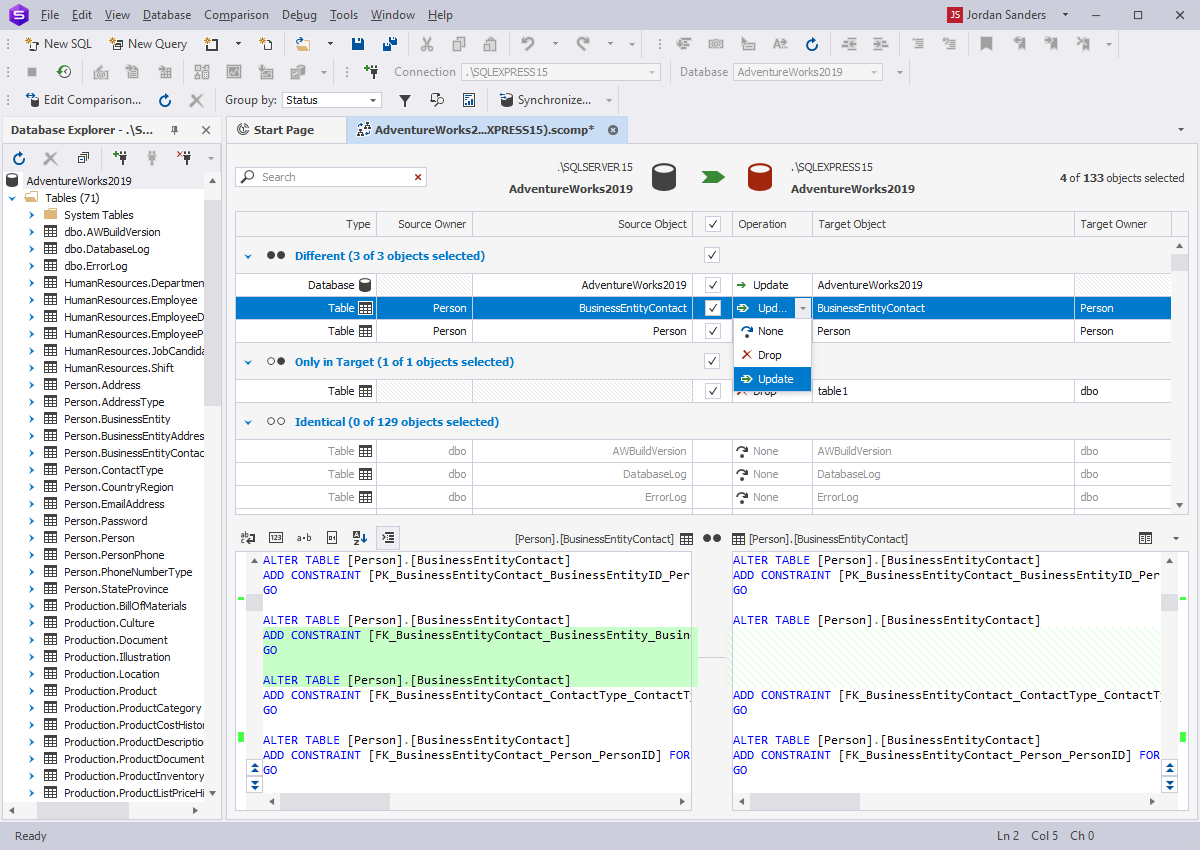
Reviewing schema differences and generating a comparison report in dbForge.
Need to work beyond the databases covered by SSDT? Download dbForge Edge for free or compare the features for different RDBMSs.
Conclusion
Reliable database development in Visual Studio 2026 comes down to keeping the schema controlled from the first change to the final deployment. The SQL project stays in source control, builds catch problems early, and the same .dacpac moves through testing and production.
These best practices come back to the same goal: make every schema change visible, reviewable, and repeatable. When the process works, the team spends less time untangling differences between environments and finds problems before the release starts.
Download dbForge Edge for free to bring schema comparison, database development, testing, and deployment tools into the same workflow.
FAQ
Is Visual Studio 2026 suitable for database development?
Yes, if you work with Microsoft SQL platforms. Database development in Visual Studio 2026 supports SQL Server 2016 through SQL Server 2025, Azure SQL Database, Azure SQL Managed Instance, Azure Synapse, and SQL services in Microsoft Fabric. It does not support MySQL, Oracle, or PostgreSQL.
Does Visual Studio 2026 support SDK-style SQL projects?
No. Visual Studio 2026 supports only the original SQL project format through SSDT. SDK-style projects based on Microsoft.Build.Sql work with VS Code and command-line tools. They are also available through an optional preview component in Visual Studio 2022.
How do you import an existing database into Visual Studio?
Create an empty SQL Server Database Project, right-click the project, and select Import > Database. Connect to the source, and SSDT will generate files for its database objects. If the project already contains schema objects, use Schema Compare instead.
Can Visual Studio database projects be deployed through CI/CD?
Yes. The build produces a .dacpac that SqlPackage can publish through Azure Pipelines, GitHub Actions, or another CI/CD platform. Generate a script or DeployReport first so the team can review the deployment plan before publishing.
How do you prevent schema drift between environments?
Avoid direct database changes and deploy through the same controlled pipeline. Enable RegisterDataTierApplication to record the deployed schema, then use SqlPackage DriftReport to find out-of-band changes. BlockWhenDriftDetected can block the next deployment until those differences are resolved.
Can dbForge Edge replace Visual Studio?
Not for app development or Microsoft Visual Studio SQL projects. dbForge Edge is a visual GUI tool for SQL development, comparison, administration and query profiling for SQL Server, MySQL, MariaDB, Oracle, PostgreSQL, and quite a few related cloud services.
Planet for the MySQL Community